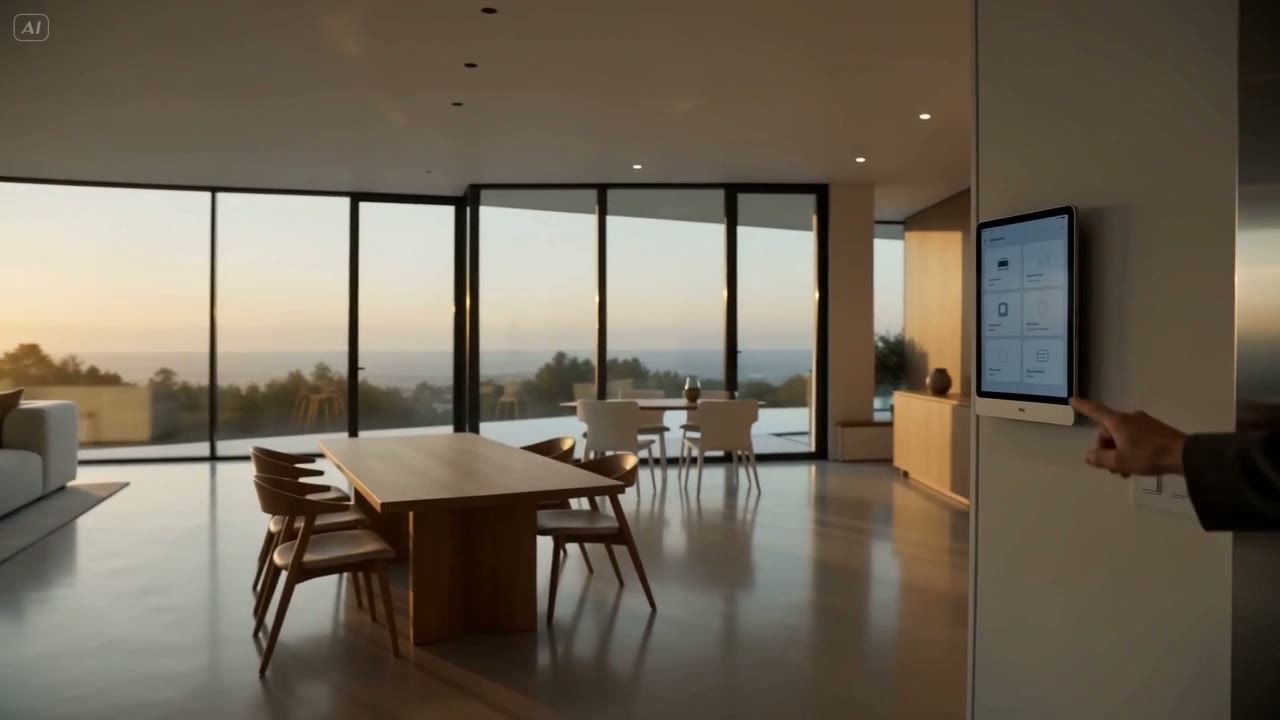
Connect your computer to Alexa, Apple Home or Home Assistant. Control apps and playback, add automations, and use its sensors, webcam and screen with compatible integrations.
Wake-on-LAN requires compatible hardware and a sender. Other features need a running agent, permissions and an appropriate plan.
Voice control
Your commands also work with Alexa, Siri, and Assist.
Configure actions in Alexa, Apple Home or Home Assistant and test the controls, scenes or shortcuts your assistant supports. Available phrases and features depend on the ecosystem.
🗣️AlexaAlexa
🏠SiriApple Home
🔧AssistHome Assistant
Say it once and reuse the same action in voice, scenes, and automations.
Turn on the PC, switch modes, or open an app without touching the keyboard or mouse.
Perfect for commands like meeting mode, opening Plex, or preparing the desktop before you arrive.
Alexa
Turn on the office PC.
Siri
Turn on meeting mode.
Assist
Open Steam on the gaming PC.
Features
🎮
Total Control.
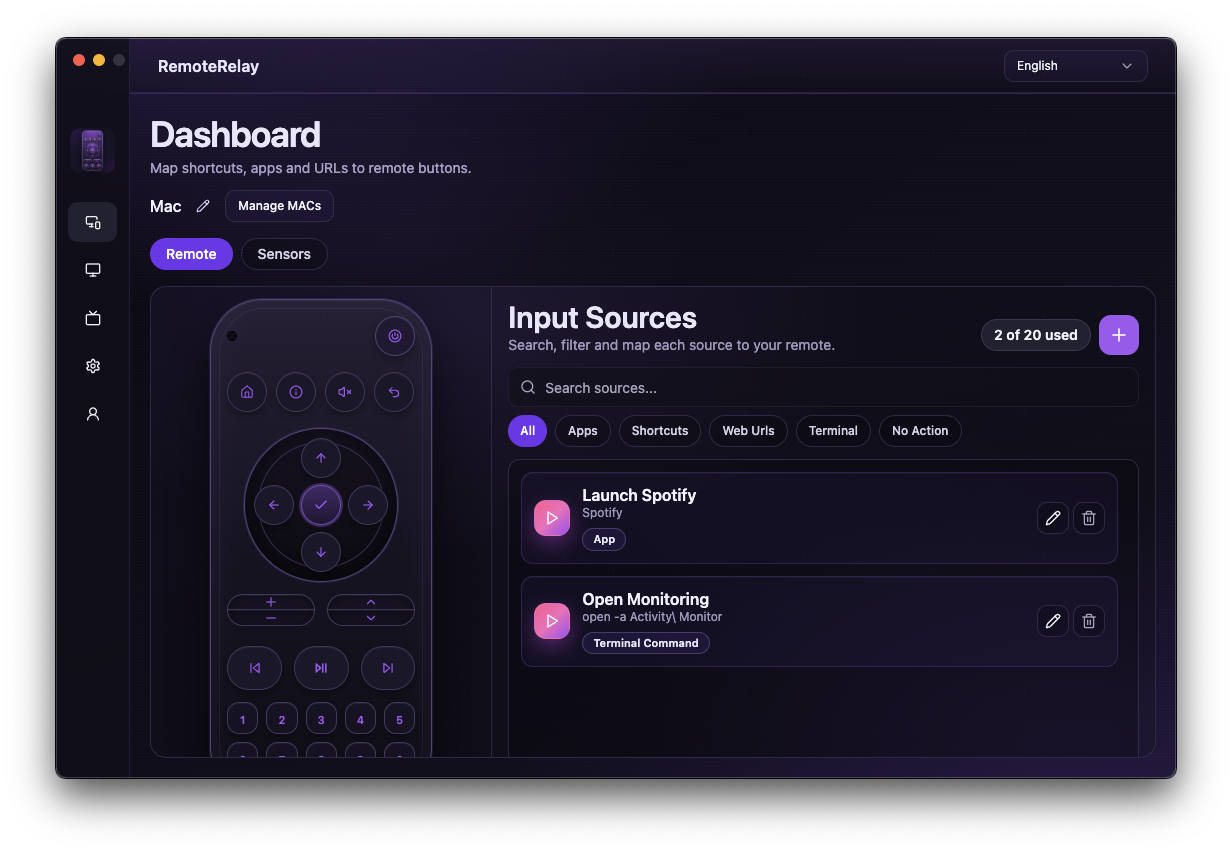
Turn your smart home into the ultimate PC remote: run shortcuts you create to open apps, websites, or commands from your home app or voice assistant.
📊
Always Aware.
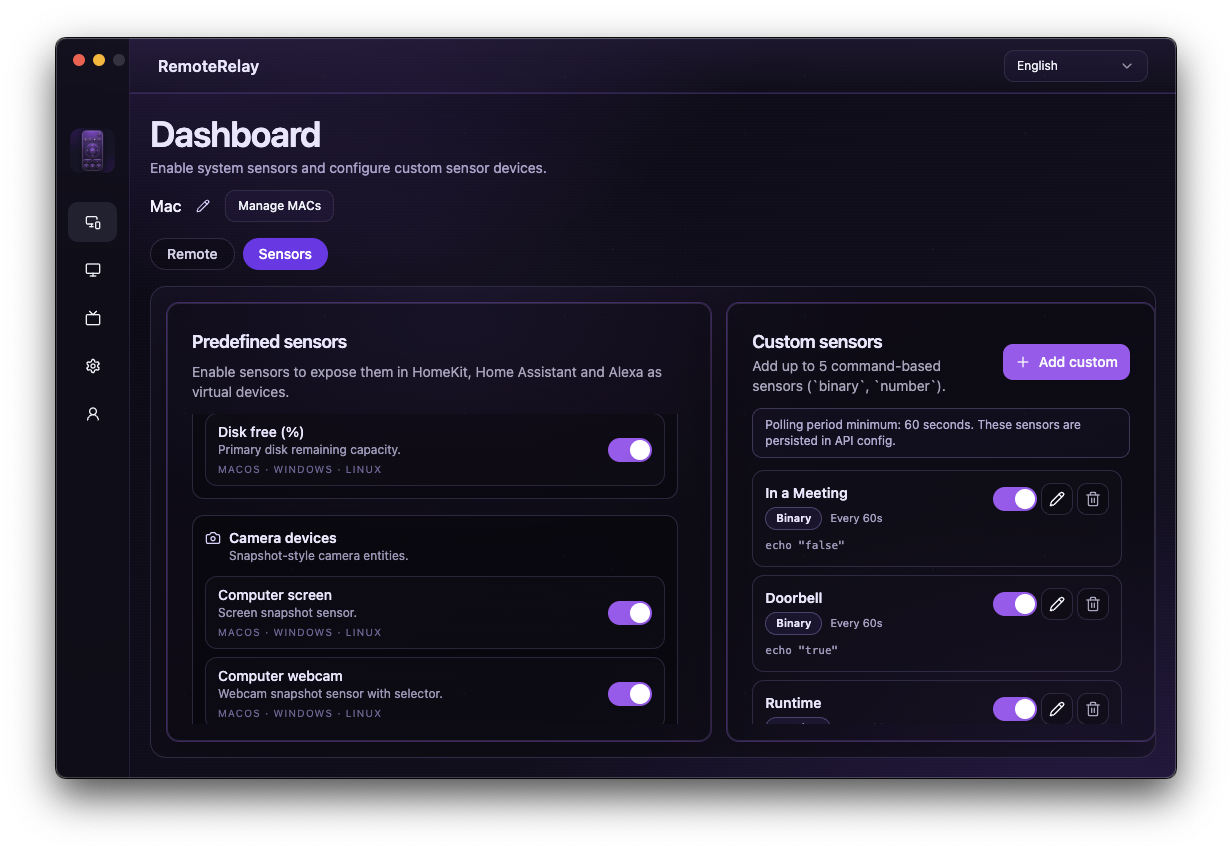
Read PC metrics and configure custom sensors to obtain signals through your own commands.
📷
Eyes Everywhere.
View your live webcam through compatible integrations and clients.
⚡
Wake Up.
Turn on your computer from bed. One tap.
🚀
One Tap.
Launch apps, run scripts, trigger automations instantly.
♻️
Nothing Wasted.
Give your old PC a second life as a smart home hub.
How it works
Get started in minutes
No need to replace your current setup or build a complicated stack from scratch.
01
Install the app
Install RemoteRelay on the computer you want to turn into a useful home device.
02
Pick your ecosystem
Connect it to Apple Home, Home Assistant, or Alexa depending on what you already use.
03
Control and automate
Use the PC as a remote, camera, sensor, or source of quick actions inside your home.
Integrations
Works with the ecosystems you already use
Each platform supports different capabilities, but RemoteRelay already lets you bring your PC into Apple Home, Home Assistant, and Alexa.
Alexa
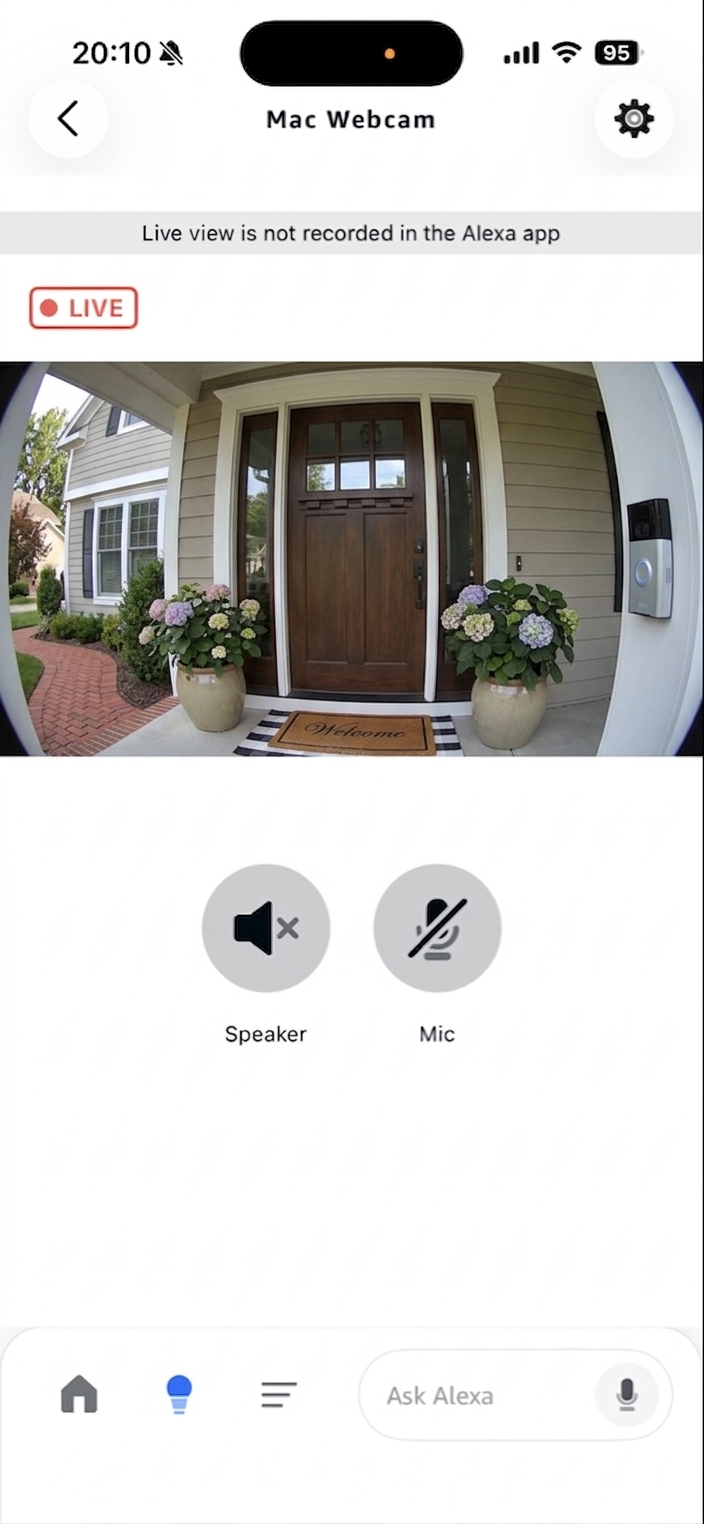
The most direct path if you want wake, shutdown and quick PC actions inside a mainstream home app.
Wake the computer with Wake-on-LAN.
Shut it down remotely from the Alexa app.
Trigger the actions you configure in RemoteRelay from the inputs selector.
Live view of the webcam with audio, plus live screen viewing.
Create custom sensors and expose them in Alexa too.
Apple Home
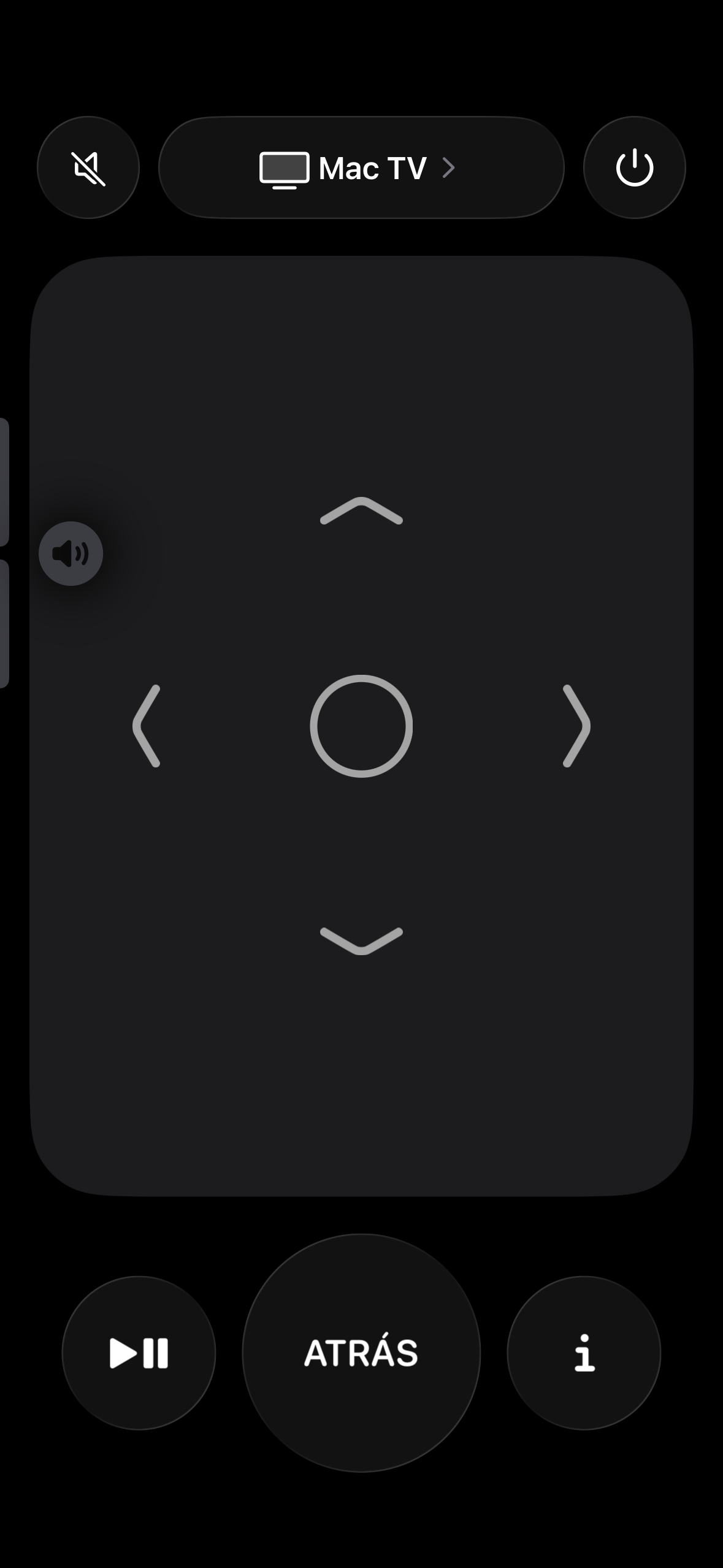
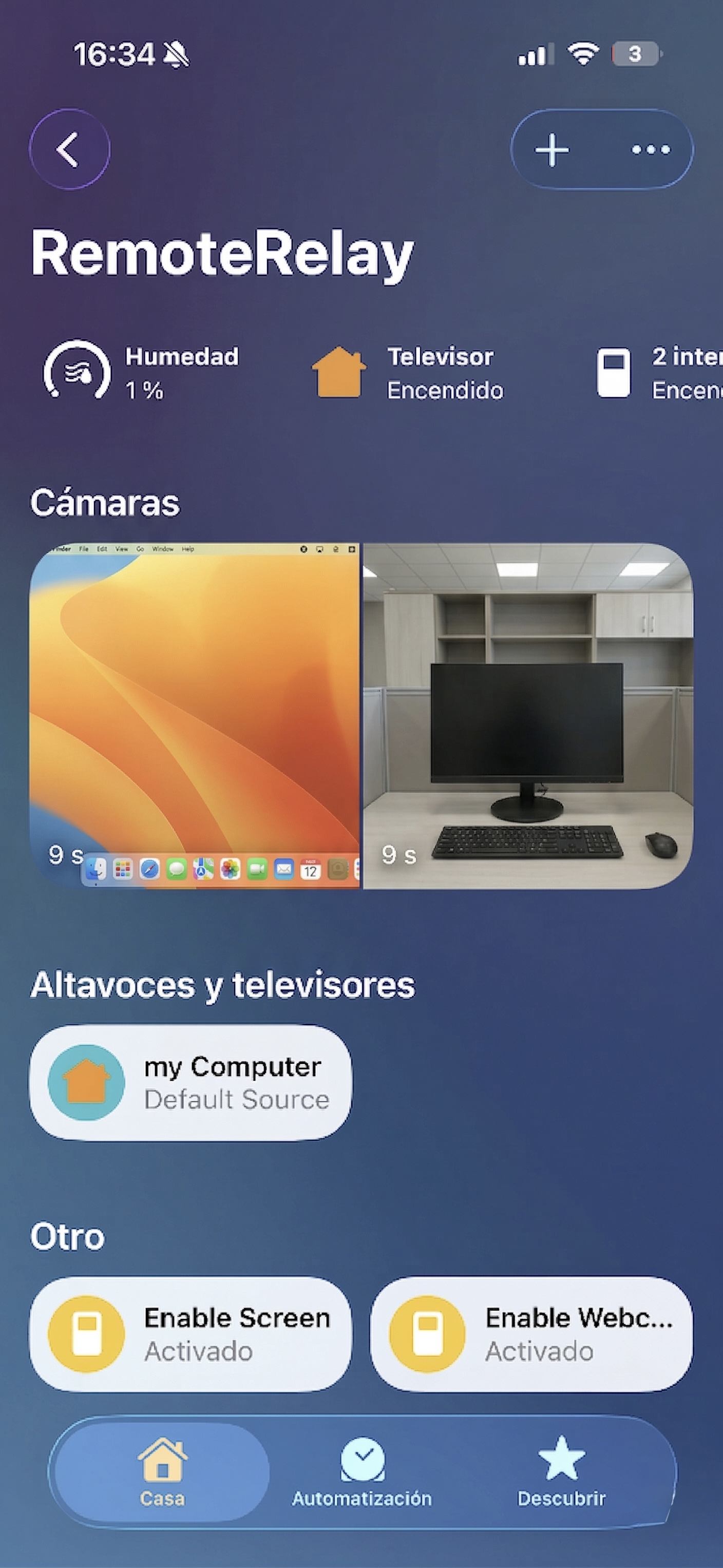
Add your PC to the Home app on Mac, iPhone or iPad and control it while RemoteRelay is running.
QR pairing directly from the desktop app.
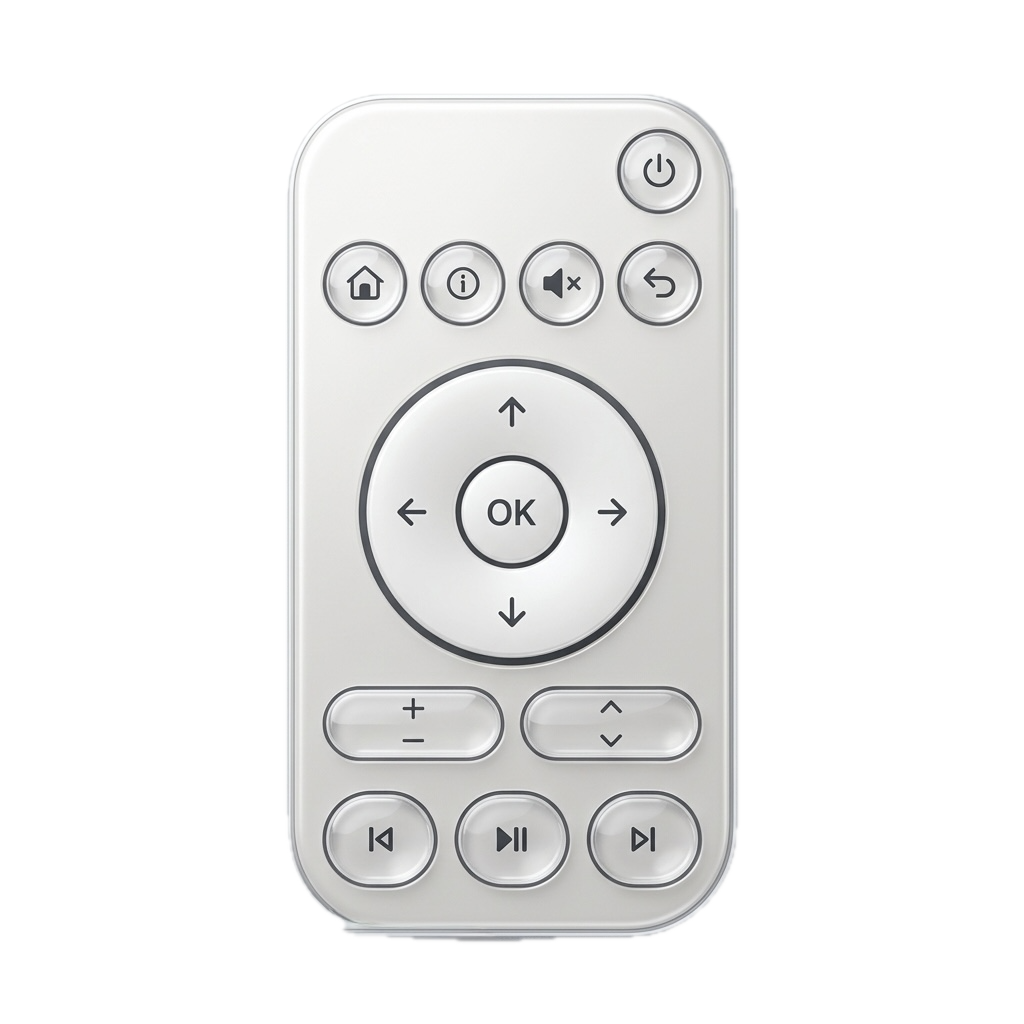
TV-style controls and input switching while the daemon is online.
Screen and webcam accessories if you enable them in RemoteRelay.
Create custom sensors and show them in Apple Home too.
* RemoteRelay is not an Apple-certified accessory and is not affiliated with, sponsored by, or endorsed by Apple. Home app compatibility may vary by iOS, iPadOS, or macOS version and can change with future updates.
Home Assistant
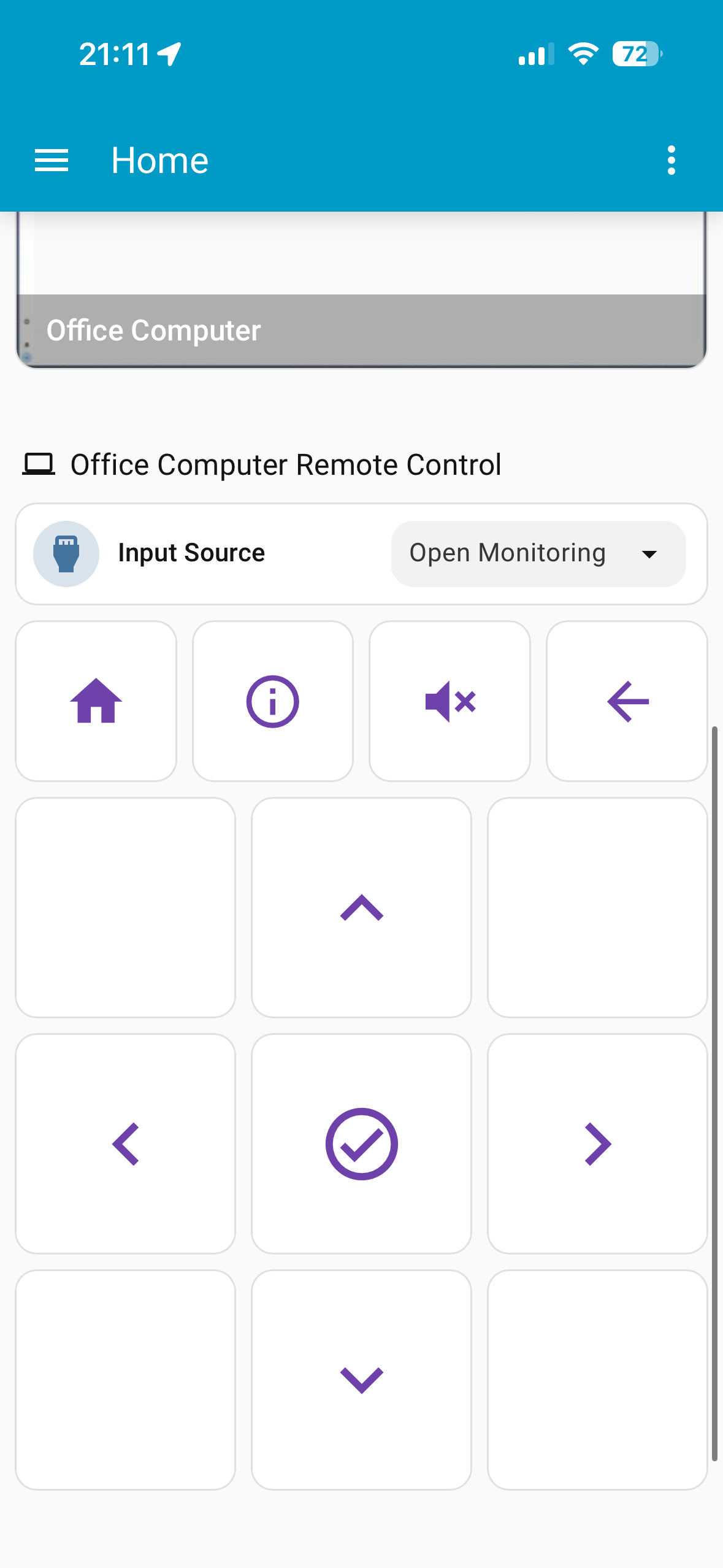
The deepest integration today: local pairing, real wake, remote control and entities you can actually automate.
Local pairing with a temporary code.
Wake-on-LAN even if the daemon is offline, using the saved MAC addresses.
Remote shutdown, keys and sources from the integration.
Cameras with snapshot and stream when you enable them.
Create custom sensors and add them to Home Assistant too.
Matter
For now this is the experimental path for pairing RemoteRelay with Google Home and other controllers, with a fallback mode designed for action triggering.
Remote profile by default for mapped commands.
Switches mode that exposes each action as an auto-off switch.
Compatibility is still evolving depending on the controller you use.
RemoteRelay Companion
Your PC remote, now in your pocket.
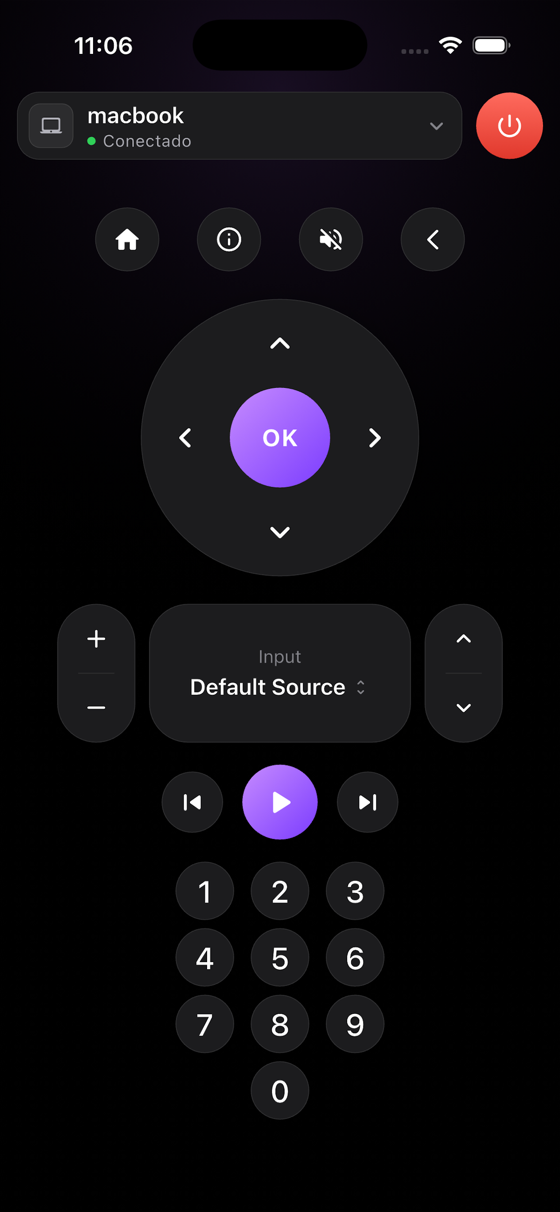
Wake and control your authorized PCs from iPhone over your local network. Power, inputs, volume, channels, and media controls are always close at hand.
✓Included with Pro and Ultimate
Wake it. Control it. Keep moving.Wake a selected PC from Companion, then open its full remote whenever you need it.
Start free for Wake-on-LAN, then move to Pro or Ultimate when you want remote control, quick actions, and more computers.
Launch offer
Special launch pricing for early users
Pro and Ultimate are currently available at a special launch price for a limited time. This temporary offer may be updated after the first launch phase.
Free
€0forever
Start with 1 computer plus 2 hours of Pro trial.
Wake-on-LAN*
Remote shutdown (not included)
Quick actions (not included)
Sensors (not included)
Live webcams and screen (not included)
Wake-on-LAN compatibility only with Alexa
2 hours of Pro trial
1 computer
Most popular
Pro
€12/ per year
Special launch price
The best option for most homes that want to control and automate their PC.
Wake-on-LAN*
Remote shutdown
Quick actions
Sensors
Live webcams and screen
Major smart home apps
Up to 20 custom input sources per computer
Up to 5 computers
Ultimate
€25/ per year
Special launch price
For setups with multiple machines, a home lab, or larger installations.
Wake-on-LAN*
Remote shutdown
Quick actions
Sensors
Live webcams and screen
Major smart home apps
Up to 40 custom input sources per computer
Up to 20 computers
FAQ
Answers to the setup questions we get most
Start here if Alexa, Wake-on-LAN, shutdown, or account linking is not behaving as expected.
Video guides
Watch the setup in motion
Short walkthroughs for Alexa, Apple Home, the mobile companion app, and Sensors & Inputs.
Alexa
Control your PC with Alexa
Enable the Alexa integration, discover your PC, and trigger configured actions from your smart home.
No, not for basic Wake-on-LAN. To wake a PC, the important part is having the correct Ethernet MAC address configured and linking Alexa with the same RemoteRelay account.
Yes. Remote shutdown, sleep, shortcuts, and input sources require the RemoteRelay app to be installed and active on that PC.
It can happen. If you only use Wake-on-LAN, those states do not always prevent the PC from waking. If Alexa keeps reporting the wrong state, delete the device in Alexa and run Discover Devices again.
Make sure you are using exactly the same account in Alexa, the website, and the desktop app. If the account was created with Google or Amazon, keep signing in with that same provider.
No port forwarding should be required. If Wake-on-LAN works on one network but not on another, the cause is usually the router or modem: client isolation, blocked local broadcast, DHCP behavior, or the wrong network adapter MAC.
Open the app on each PC, update it to the latest version, go to Integrations, enable Alexa on each computer, and confirm all of them use the same RemoteRelay account. Then run Discover Devices again in Alexa if needed.
Yes. In RemoteRelay, set the virtual power button action to Sleep. Changing only the physical power button behavior in Windows is not always enough.
Create them first in RemoteRelay. After that, you can trigger them with Alexa, for example by saying: Alexa, set the input of <computer name> to <input source name>, or by using your own routine.
Not usually. Alexa sometimes assigns a generic category automatically. If the device responds correctly, you can continue using it normally even if the label looks unusual.
Download the latest version directly from the website and install it manually. This has resolved most update-related issues on Windows.
RemoteRelay has a graphical Linux version and a headless Linux version. On NAS devices, Wake-on-LAN may work if the hardware supports it and the MAC address is correct, but remote shutdown requires RemoteRelay to run on that system.
Ready to unlock your PC's full potential?
With Pro you get remote control, remote shutdown, custom actions, and up to 5 PCs per account.
* Wake-on-LAN currently has technical restrictions in smart home apps (Alexa, Google Home, Apple Home, and Home Assistant). Right now it is only compatible with Alexa and with Home Assistant when using the RemoteRelay integration.