 RemoteRelay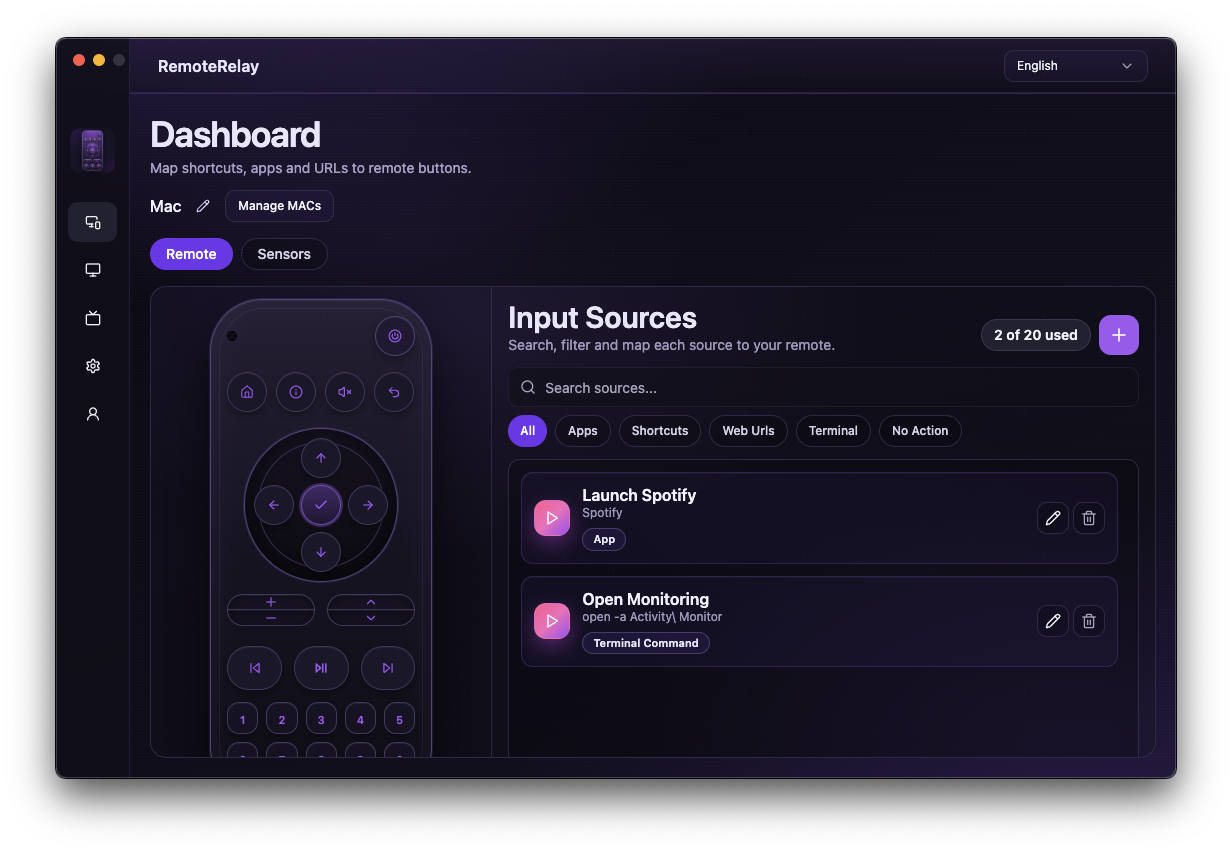
What you need
- A computer matching your chosen download: Windows, macOS or Linux.
- A RemoteRelay account and access to the ecosystem you want to configure.
- Check wake separately from actions that need a running desktop agent.
Getting started
- Choose one initial action: wake the PC, open an app or view a camera.
- Use the table to choose an integration and open its setup guide.
- For controls on a running computer, install RemoteRelay and test the local action before linking your ecosystem.
- Review plans, computer limits and required features before subscribing.
Choose your integration
You can combine integrations. This table helps you choose a setup; it does not mean every ecosystem offers identical controls, triggers or network requirements.
| Integration | What you can set up | What to check |
|---|---|---|
| Alexa | Wake and shutdown, app/action sources, sensors and webcam or screen camera sources. | Skill linked to the same account; running agent for controls; compatible Alexa camera client. WoL needs a compatible Echo on the network. |
| Apple Home / Siri | Computer accessory in Home, accessory controls and supported camera sources. | Pairing and computer permissions. Access away from home depends on your Apple Home remote setup. |
| Home Assistant | Computer entities, sensors, cameras and automations with the rest of your home. | Configured RemoteRelay integration; running host to send WoL; Home Assistant remote access when away. |
| Companion for iPhone | Computer remote controls from your phone. | Companion app, configured computer and compatible plan. Check the App Store listing for iOS requirements. |
| Matter / Google Home | Explore pairing and capabilities in your installed version. | Experimental: review the Matter guide before choosing it for your main setup. |
| MCP / AI agents | Explore tools for agent integrations. | Pilot; this does not mean real-computer control is generally available. |
Computer, permissions and plan
Install the package matching your operating system and architecture. On Mac, distinguish Intel from Apple Silicon. Input controls and capture may require system permissions; graphical applications may also need a signed-in user session.
The free plan provides Wake-on-LAN for one computer. Pro and Ultimate extend controls and computer limits. Check current prices in the portal: the purchase channel and region may affect the amount shown.
Compatibility and limits
Software compatibility does not guarantee every computer can wake remotely. Cameras need permissions and a compatible client; live viewing does not necessarily include recording. Matter remains experimental and MCP is presented as a pilot.
Test the action on your computer before including it in a routine. Available plans and features are detailed in the portal.
Common questions
Do I need Matter to use Alexa or Apple Home?
You do not have to choose Matter for every integration. RemoteRelay has specific Alexa, Apple Home and Home Assistant paths; follow your ecosystem's guide.
Is Alexa only for turning on the computer?
It also supports configured actions and app sources, shutdown, sensors and webcam or screen cameras. Enable these features in the agent and use the devices Alexa discovers.
Does it start a completely shut-down Mac?
Controlling a running Mac and waking it from sleep differ from cold boot. Cold boot is not guaranteed across models; check your hardware, power state and network.
Put your computer to work with your home
Choose your integration and verify one action. Then add the apps, sensors and cameras you need.