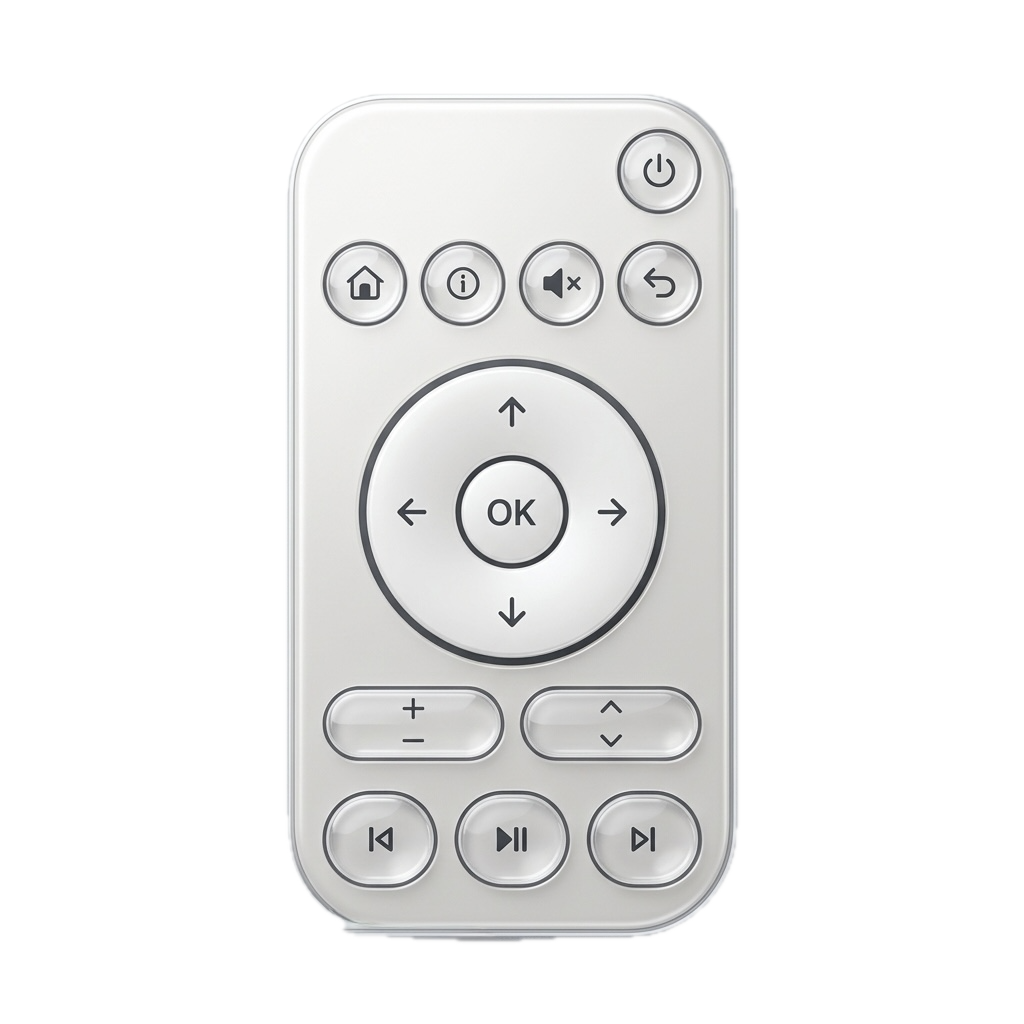
 RemoteRelay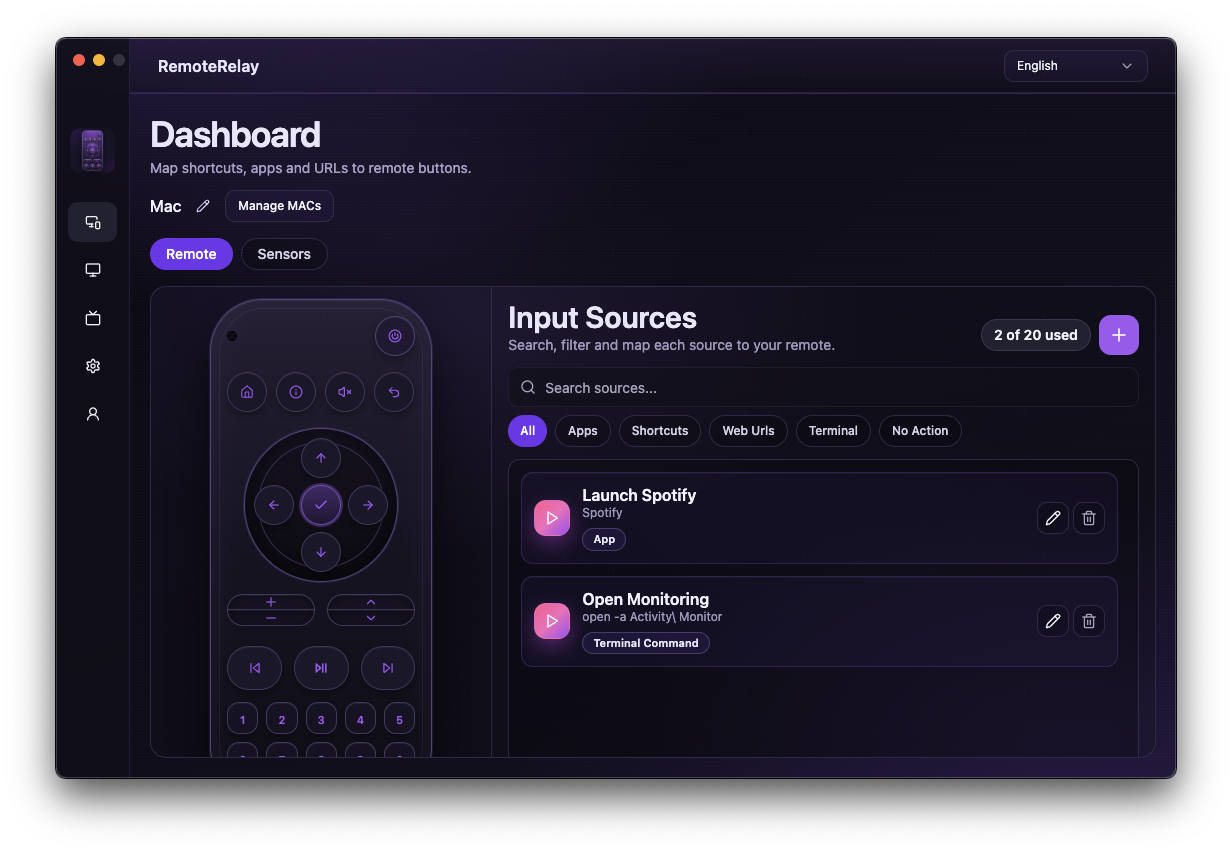
What you need
- Home Assistant with the RemoteRelay custom component.
- RemoteRelay on the computer with its local integration enabled.
- Connectivity between the two devices and a temporary pairing code.
Getting started
- Install the RemoteRelay component in Home Assistant and enable the integration on the desktop.
- Add the device discovered on your network and finish pairing with the temporary code.
- Test the media_player and remote entities; add the sources and sensors you need to your dashboard.
- To wake the computer when its agent is offline, check that Home Assistant knows its MAC addresses and can send Wake-on-LAN on that network.
Entities for power, apps, scripts and playback
The media_player entity provides Wake-on-LAN, shutdown, source selection and volume. The remote entity provides keys. Sensors and cameras depend on features enabled in the agent and computer permissions.
To launch an app or run a script, configure a RemoteRelay source and select its exact name. Use the automation recipe to wait for the agent after wake. Availability does not prove a graphical session is ready.
Open the dashboard from iPhone or Android using Home Assistant. For Assist, expose supported scripts or entities in Home Assistant and test phrases in your language; integration does not imply automatic recognition of every command.
Compatibility and limits
The Home Assistant host must remain on to send a wake packet. Running-computer controls require the agent; cameras and sensors depend on platform and permissions. Automation recipes are configured in Home Assistant.
Test the action on your computer before including it in a routine. Available plans and features are detailed in the portal.
Common questions
Can Home Assistant wake and shut down my PC?
Yes. Wake uses Wake-on-LAN from the Home Assistant host with compatible hardware and networking. Shutdown needs a running agent, permissions and the corresponding plan.
Do local controls need a public IP address?
Not for pairing and control inside your network. For access away from home, configure Home Assistant's remote path rather than publishing the agent's port directly.
Put your computer to work with your home
Choose your integration and verify one action. Then add the apps, sensors and cameras you need.