 RemoteRelay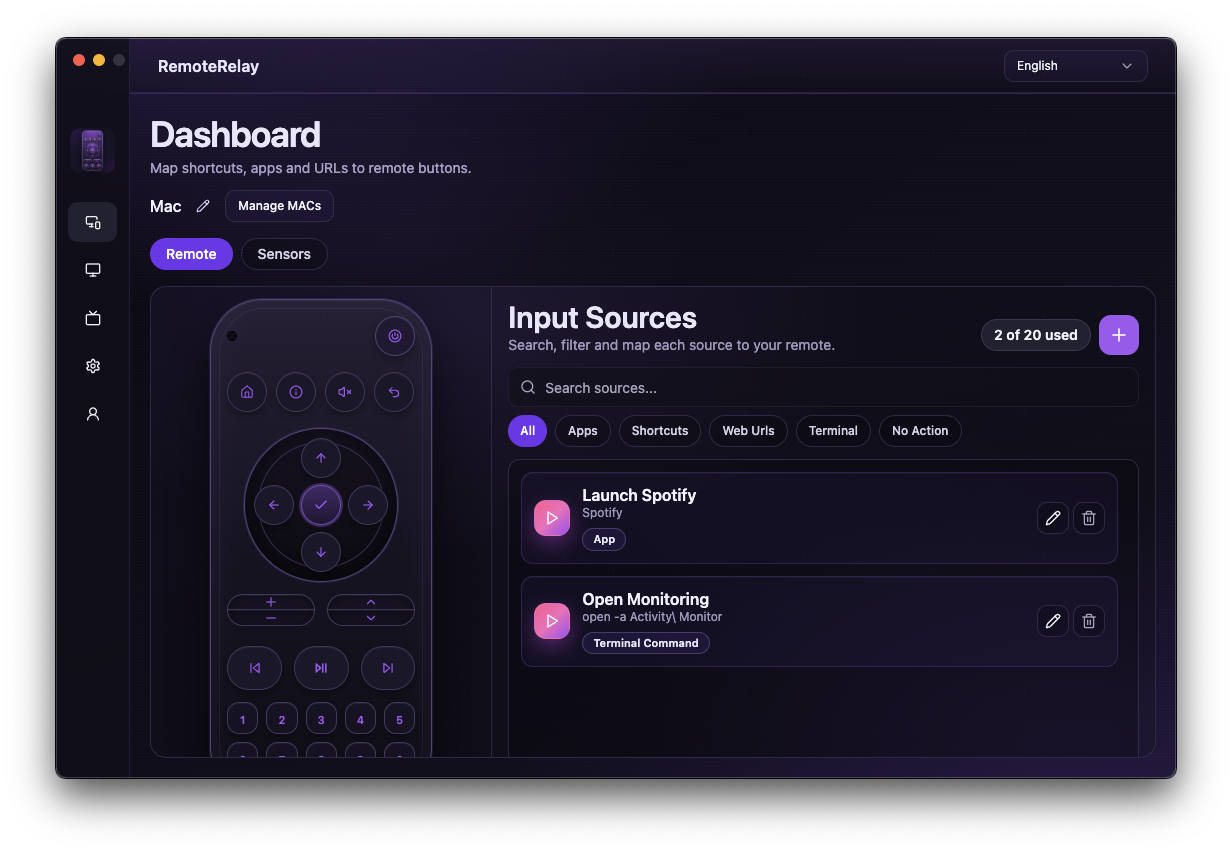
What you need
- A RemoteRelay account linked to the Alexa skill.
- For Wake-on-LAN, a compatible Echo on the computer's network and hardware configured to wake.
- For shutdown and actions, an available desktop agent and a plan that allows the feature.
Getting started
- Set the computer name and MAC addresses in RemoteRelay. If you only need wake, review the Wake-on-LAN flow before installing extra components.
- Link the skill to your account and ask Alexa to discover devices.
- Test wake using the discovered name. For agent features, check that Alexa shows as connected in the desktop app.
- Configure the applications and actions you want to expose, rediscover devices when needed and test each action.
- Enable the sensors you want to expose. For webcam or screen, enable capture, discover the corresponding camera and open its view on a compatible Alexa client.
- Add available actions to Alexa routines to coordinate them with lights and other devices. Check which conditions and actions Alexa offers for each discovered device.
Run custom commands and scripts with Alexa
Yes: RemoteRelay can run custom scripts through Alexa. Configure a Terminal Command source with the command that launches your script. Alexa selects that source and the agent runs the command on your computer, which must be on, connected and on a plan allowing these actions.
An action can open an app or URL, send a keyboard shortcut or run a terminal command. Scripts use the last option: RemoteRelay calls an interpreter installed on your computer; it does not bundle Python, PowerShell or Bash or translate scripts between operating systems.
| Type and system | Example Target | Requirements |
|---|---|---|
| PowerShell · Windows | powershell.exe -NoProfile -NonInteractive -File "C:\Scripts\action.ps1" | Available PowerShell and an execution policy allowing your script. No automatic policy bypass is applied or required. |
| BAT / CMD · Windows | call "C:\Scripts\action.bat" | A valid cmd.exe batch file; use complete paths to programs and files. |
| Python · Windows | py -3 "C:\Scripts\test.py" "RemoteRelay OK" | Python 3 and the py launcher installed. If py is unavailable, use the full path to python.exe. |
| Python · macOS / Linux | python3 "/absolute/path/test.py" "RemoteRelay OK" | Python 3 accessible to the agent; use its absolute path if the environment cannot find python3. |
| Bash · macOS / Linux | /bin/bash "/absolute/path/action.sh" | Bash at that path, a script compatible with its version and all required dependencies installed. |
Tutorial: create a script and run it from an Alexa routine
This example creates remoterelay-ok.txt next to the script without shutting down the computer or changing its settings. You need Python 3. Save the following as test.py in a folder writable by the account running RemoteRelay.
from pathlib import Path
import sys

message = sys.argv[1] if len(sys.argv) > 1 else "RemoteRelay OK"
Path(__file__).with_name("remoterelay-ok.txt").write_text(
    message + "\n", encoding="utf-8"
)- Run test.py in a terminal using the Python invocation in the table, replacing the path. Check that remoterelay-ok.txt contains RemoteRelay OK.
- In RemoteRelay create a New Shortcut, name it Script test, select Type → Terminal Command and paste the same invocation into Target. Save and execute it with Run. Interface labels depend on your selected language.
- Check that the source is active for your plan. Enable Alexa under Integrations, link the skill to the same account and refresh discovery. Select Script test among the computer's inputs and check that the file updates.
- In the Alexa app create a routine with the voice trigger ‘test my computer’. Add the available action to select the computer's Script test input. If your app does not offer input selection in routines, try a custom action using an input-selection command already working on your device; availability depends on category and language.
- Save the routine and say ‘Alexa, test my computer’. This is the phrase you defined in your routine, not a built-in RemoteRelay command. Check the file's modification time: an Alexa response does not prove that the script finished successfully.
- Missing source: check its active state, linked account and discovery.
- Works in a terminal but not the agent: use the interpreter's absolute path and check permissions and environment variables.
- Alexa responds but no file appears: test with Run and add your own error logging to the script. Integrations do not read terminal output aloud.
Arguments, working directory, background execution and permissions
Write arguments in Target alongside the command, quoting paths containing spaces. These are values you configure; arbitrary Alexa speech is not promised as script arguments. Target accepts up to 300 characters, so store longer logic in a script file.
There is no working-directory selector per source. Commands inherit the executing process's directory and environment. Use absolute paths or set the directory inside your script. The example uses test.py's location rather than relying on the startup directory.
Integration-triggered commands launch detached from the request-handling process. Confirmation means they started, not that they completed successfully. Standard output and error are discarded: write logs inside your script when needed. Manual Run waits for the command result.
Commands use the executing process's identity and permissions, which can differ between a user app and a service. RemoteRelay does not automatically request elevation for each script. Avoid commands requiring passwords or interactive confirmation; graphical apps may need a signed-in session and additional system permissions.
Launch apps and control playback with Alexa
Create a source for the application or action and test it inside RemoteRelay. For playback, configure the command or shortcut your player responds to. Give it a name distinct from the computer and other sources so it is easier to select.
Enable Alexa in Integrations, link the skill to the same account and refresh discovery after source changes. Use the controls Alexa exposes for that device. Supported phrases depend on its discovered category and language; a configured action does not mean every free-form phrase will work.
View webcam, screen and sensors in Alexa
Enable the webcam or screen source, grant system permissions and turn on capture. Check the picture on the computer and refresh Alexa discovery. Open the camera by its discovered name on a compatible client, such as an Echo Show supporting that view.
Select the sensors you want to expose and check their readings while the computer runs. Alexa can discover supported numeric and binary sensors; review the available controls and conditions before creating a routine. A live camera view does not by itself include continuous recording.
Compatibility and limits
An accepted request does not guarantee a wake: firmware, network adapter and power state matter. Available actions also depend on Alexa's discovered device category. Existing WOLSkill users can find migration information in the portal.
Test the action on your computer before including it in a routine. Available plans and features are detailed in the portal.
Common questions
Can RemoteRelay run custom scripts with Alexa?
Yes. A Terminal Command source can invoke a script through an interpreter installed on your PC. Alexa selects the source and the agent runs the command with its permissions. You need a running computer and compatible plan; this guide includes a step-by-step Python example.
Does the PC have to be on for Alexa controls?
The agent must be available to launch apps, shut down, run actions, update sensors or view cameras. Wake-on-LAN uses a compatible sender that remains active on the network.
Why does Alexa discover several devices for one PC?
RemoteRelay may expose power, sources, sensors and cameras separately. Use their names to identify each function; they are not necessarily duplicate computers.
Can I combine the computer and lights in a routine?
Yes, use the actions Alexa offers for discovered devices alongside your lights. If a routine wakes the PC and then opens an app, allow for boot time and verify the result.
Put your computer to work with your home
Choose your integration and verify one action. Then add the apps, sensors and cameras you need.