 RemoteRelay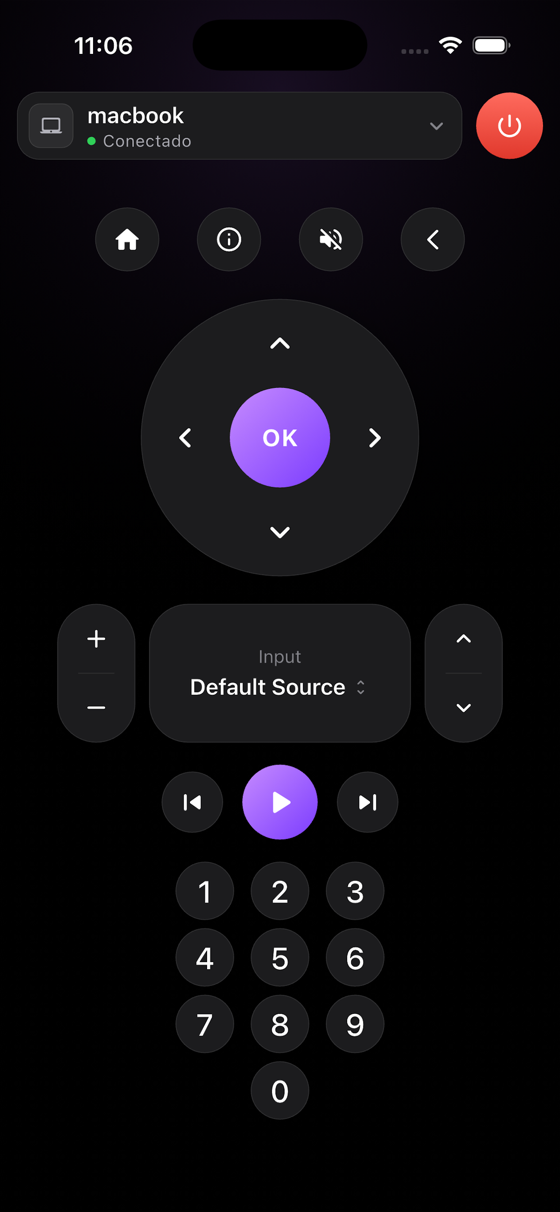
What you need
- RemoteRelay Companion for iPhone, available on the App Store.
- A Pro or Ultimate plan for Companion features and a computer configured in your account.
- For local wake, access to the computer's network and Wake-on-LAN enabled on compatible hardware.
Getting started
- Prepare RemoteRelay on the computer and check that it appears in your account.
- Install Companion from the App Store and sign in with the matching account.
- Select your computer and test the available controls. Configure your application sources on the desktop.
- If you prefer Home, follow Apple Home pairing: installing Companion does not automatically pair the HomeKit accessory.
iPhone as a remote: Companion, Home or Home Assistant
Companion is RemoteRelay's app for authorized computer controls on your local network: power, inputs, volume, channels and playback. Selecting an input executes the app or action configured on your PC.
Home uses the Apple Home/HomeKit accessory; Home Assistant uses entities and dashboards. These are alternatives with their own controls and requirements, not interchangeable names for Companion.
For Siri and Shortcuts, Companion exposes Wake PC and Open remote. Read the specific guide before assuming a voice command runs arbitrary scripts. Away from home, verify your chosen remote path; local controls do not imply automatic internet access.
Compatibility and limits
Access away from home and wake have different requirements from local controls. Check each path before relying on it. The portal currently lists Android as coming soon.
Test the action on your computer before including it in a routine. Available plans and features are detailed in the portal.
Common questions
Can iPhone control my PC without Alexa?
Yes. Companion provides local controls for authorized PCs without Alexa. Configure account, plan, local-network permission and pairing.
Does this replace a full remote desktop?
No. Power, sources and media buttons do not equal an RDP mouse-and-keyboard session. Viewing the screen as a camera is another separate feature.
Put your computer to work with your home
Choose your integration and verify one action. Then add the apps, sensors and cameras you need.