 RemoteRelay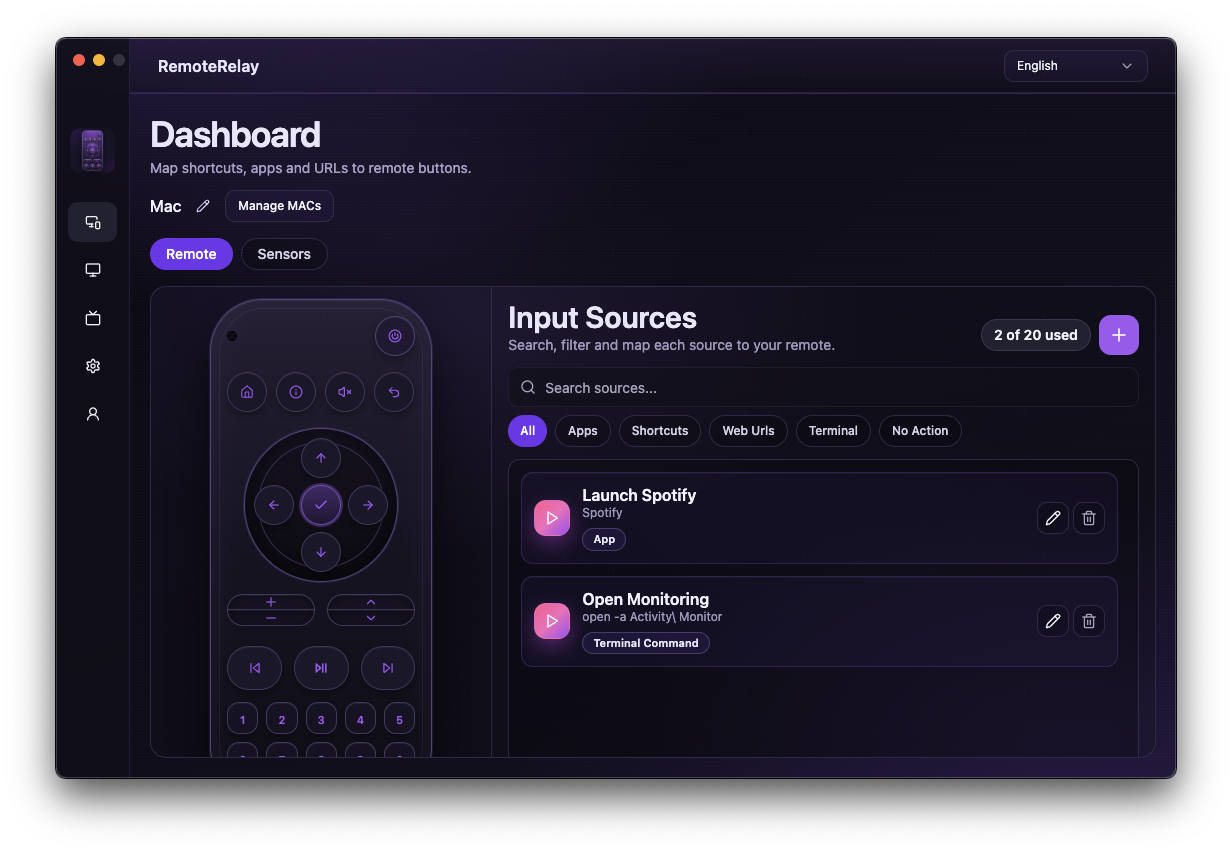
What you need
- Access to the computer and your ecosystem account.
- The correct download for agent features; for Alexa wake, review the WoL path first.
- A recognizable computer name and the same RemoteRelay account for linked integrations.
Getting started
- Decide whether your first action will wake the computer or control one that is already running.
- For wake, register the correct MAC and test WoL. For controls, install RemoteRelay, sign in and confirm the computer appears in your account.
- Open Integrations in the app and enable your chosen integration. For Alexa, link the skill to the same account and discover devices; for Home or Home Assistant, follow the corresponding pairing guide.
- Test one action and observe the computer's response. Then add an app source or enable the camera you want to view.
- Add the verified action to a routine. If the computer starts off, allow time for boot and for the agent to become available.
Verify your first setup
Complete these checks before adding more computers or automations.
- Wake: the computer wakes from your normal power state, not just a different test state.
- Applications: the source opens the correct app in your intended user session.
- Camera: the view matches your selected webcam or screen, and you can disable capture.
- Shutdown: save your work and confirm the result. Test WoL separately afterwards.
- Routine: also test what happens when the computer is unavailable.
Compatibility and limits
An assistant response is not a substitute for checking the computer. Not every feature works while it sleeps or without a signed-in session. Test access away from home separately using your chosen remote path.
Test the action on your computer before including it in a routine. Available plans and features are detailed in the portal.
Common questions
Can I start for free?
Yes, start with Wake-on-LAN for one computer. For remote controls, shutdown and additional actions, review Pro and Ultimate features in the portal.
Do I install RemoteRelay on each computer?
Agent features need RemoteRelay installed on each computer you want to control. The Alexa wake path has its own requirements and uses a WoL sender that remains running.
Put your computer to work with your home
Choose your integration and verify one action. Then add the apps, sensors and cameras you need.