 RemoteRelay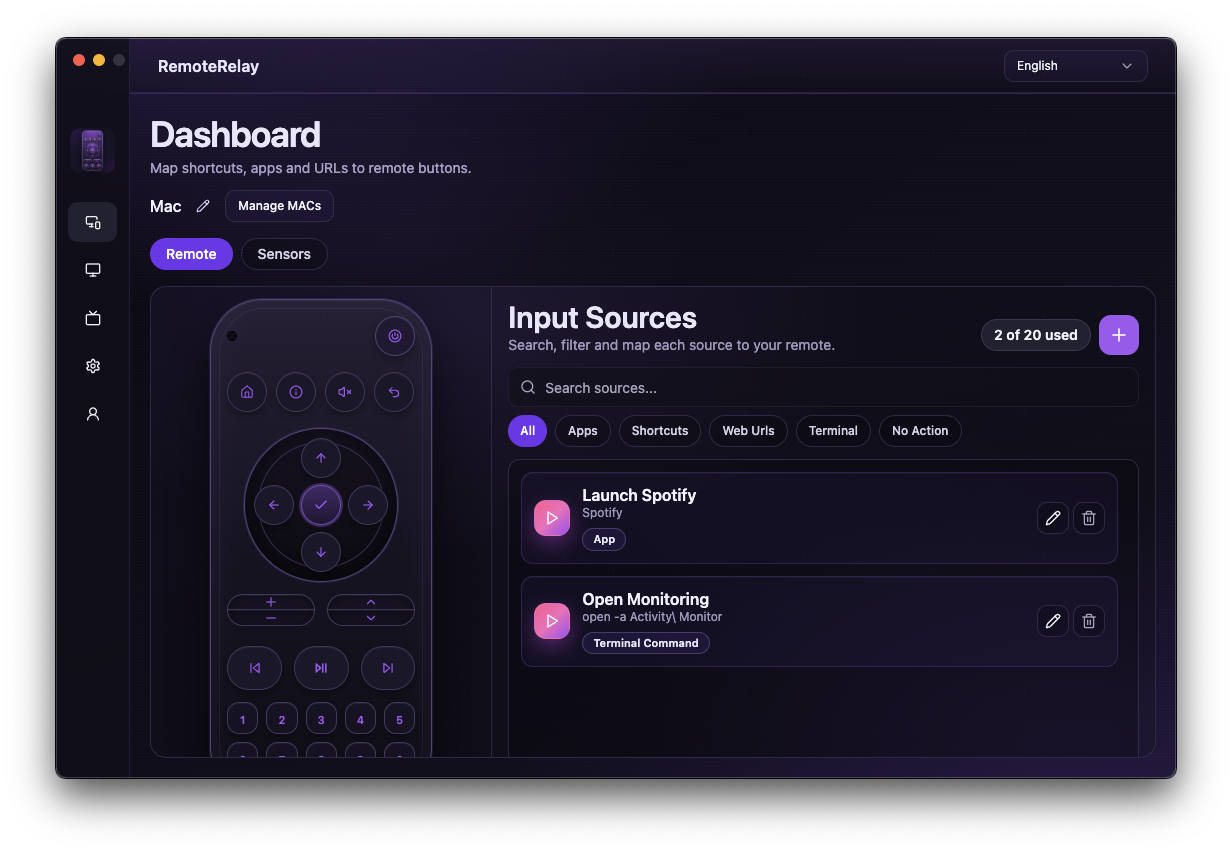
What you need
- A compatible computer and RemoteRelay for agent features.
- A configured integration or Companion for local phone controls.
- Check the permissions, plan and requirements of each feature.
Getting started
- Choose a feature below and open its guide.
- Configure and test the action while the computer runs before adding voice or automations.
- Test wake separately: it depends on hardware and a Wake-on-LAN sender.
Features and guides
Each feature has a canonical guide with requirements and limits. Combine features in a routine after testing each separately.
- Wake the PC with Wake-on-LAN and a compatible sender
- Shut down the computer or configure a sleep action
- Open apps and URLs, run scripts and keyboard shortcuts
- Control volume and playback with configured actions
- Include the PC in smart-home routines and automations
- Read computer sensors supported by the system and hardware
- View the webcam through a compatible integration
- View the screen as a camera source
Compatibility and limits
Integrations do not expose identical features. Matter is experimental, Android has a beta list and MCP is a pilot. Live cameras do not imply continuous recording or RDP access.
Test the action on your computer before including it in a routine. Available plans and features are detailed in the portal.
Common questions
Do I need Alexa to use RemoteRelay?
No. Choose Apple Home, Home Assistant or Companion for your task. Compatibility, permissions and remote access depend on the path you choose.
What works while the computer is off?
Wake-on-LAN may work when an external sender stays active and the hardware supports it. Apps, scripts, sensors and cameras need a running agent.
Put your computer to work with your home
Choose your integration and verify one action. Then add the apps, sensors and cameras you need.