 RemoteRelay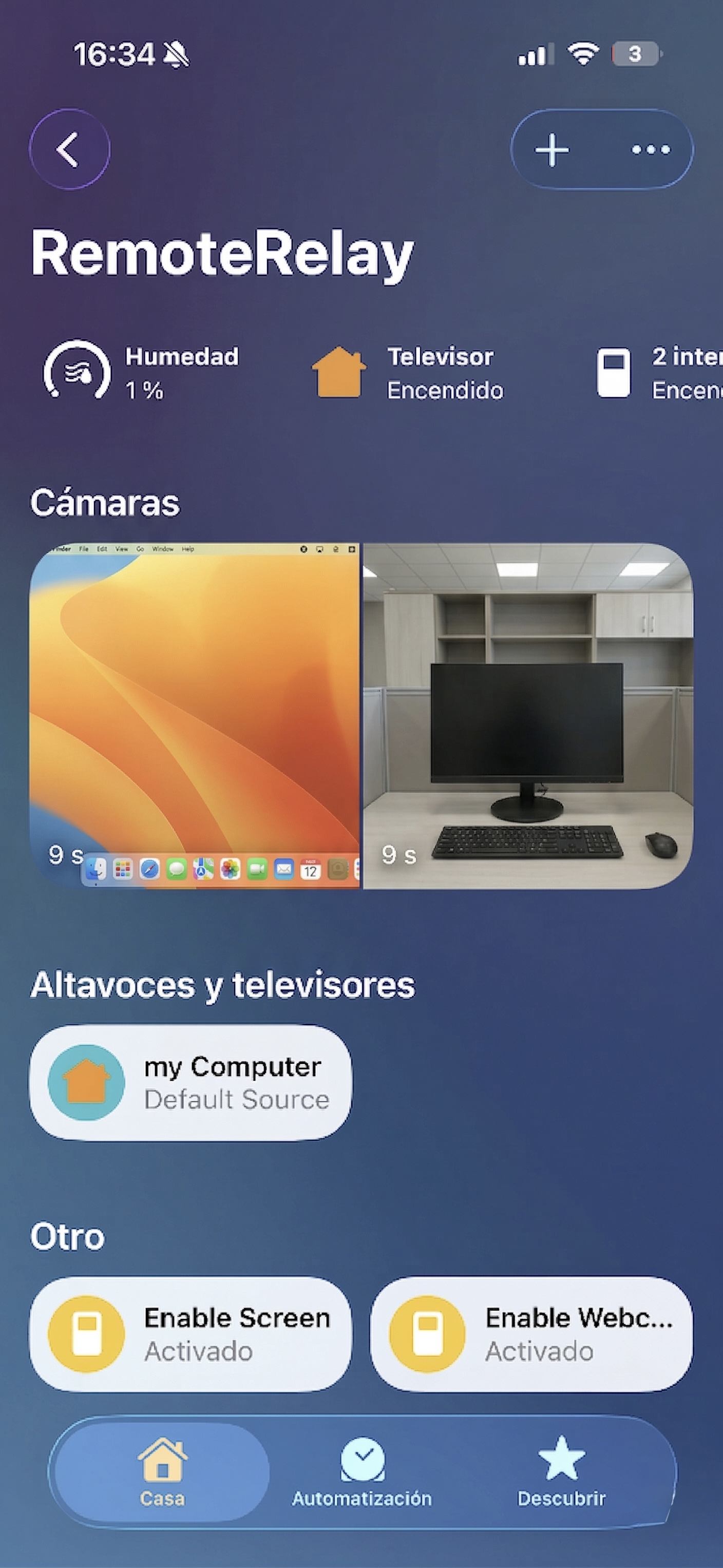
What you need
- Choose a path: Alexa, Apple Home/Siri or Home Assistant with your configured assistant.
- Pair the computer first and check the action in the ecosystem's app.
- Use distinct names for your computer, input sources and scenes.
Getting started
- Start with a simple, observable action such as shutting down or selecting a supported source.
- Test that action in the smart-home app before using voice.
- Use the exact device name. If an action is not directly exposed, check whether your ecosystem can use a scene or routine.
- To launch apps, configure the target in RemoteRelay first and check that it runs in the right user session.
Compatibility and limits
Supported phrases and actions vary by assistant. RemoteRelay is not general dictation or an assistant that interprets arbitrary desktop instructions. Siri through Home is different from native Mac shortcuts.
Test the action on your computer before including it in a routine. Available plans and features are detailed in the portal.
Put your computer to work with your home
Choose your integration and verify one action. Then add the apps, sensors and cameras you need.