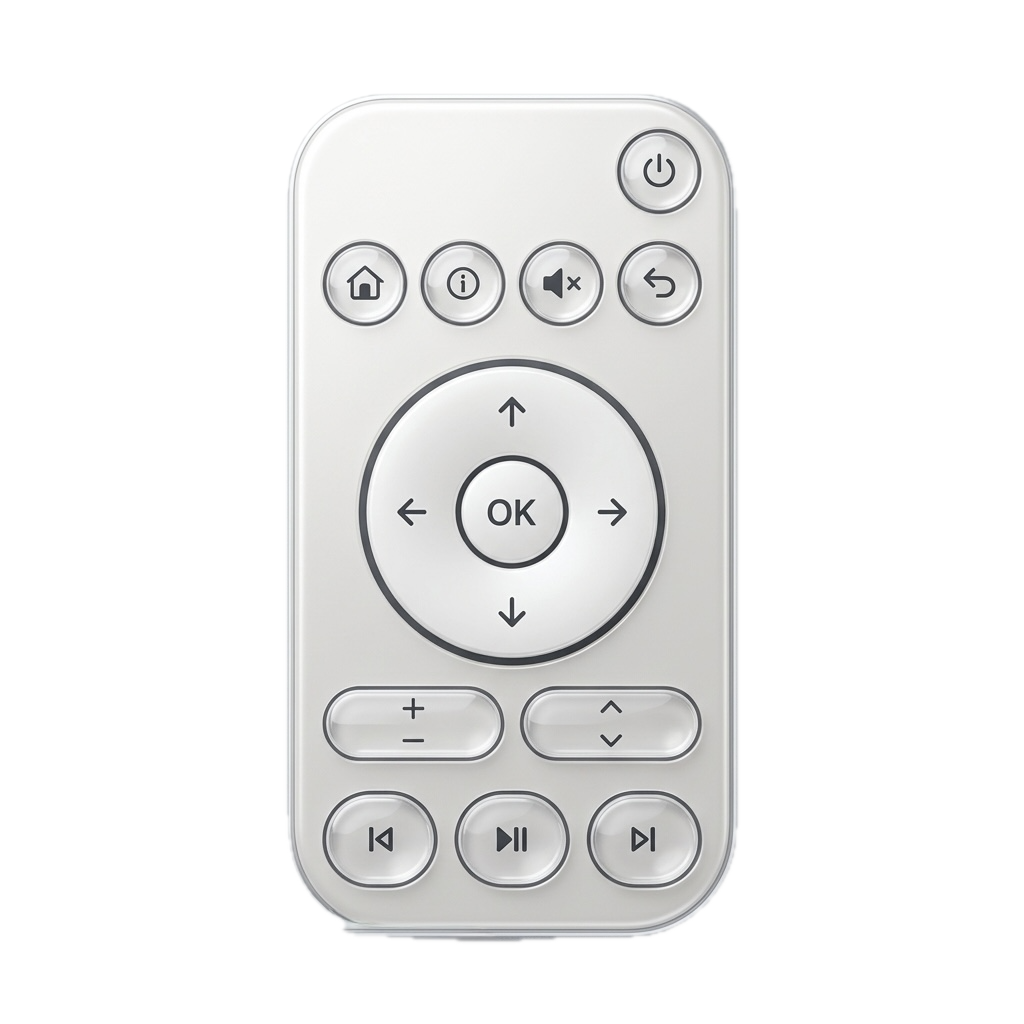
 RemoteRelay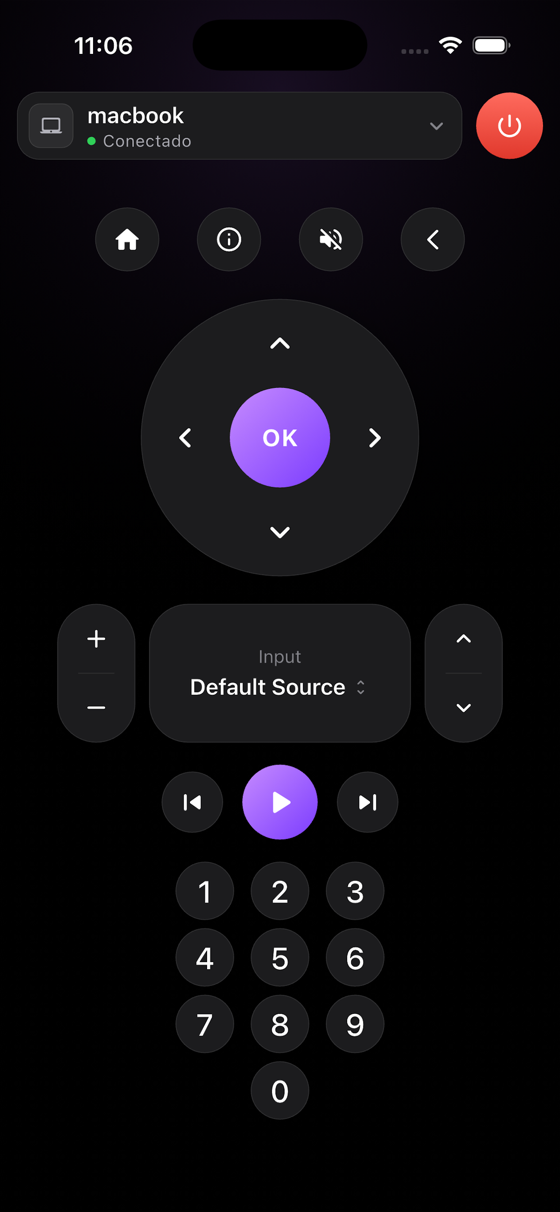
What you need
- Installed Companion, signed-in session and refreshed computer inventory for its Shortcuts.
- iPhone local-network permission and Wake-on-LAN-compatible hardware and network.
- For Home, a running RemoteRelay agent and paired HomeKit accessory.
Getting started
- Open Companion, sign in and check your authorized PC appears. Test the remote on the local network.
- Find RemoteRelay actions in Shortcuts and select Wake PC or Open remote with the appropriate computer.
- Run the shortcut manually. Wake PC sends a wake request; Open remote opens Companion while retaining account, plan and pairing checks.
- Save a clearly named shortcut and test it with Siri in your language. If asked to unlock or open Companion, refresh permissions, session and inventory.
- For Home, use exposed HomeKit accessory controls and test supported scenes before invoking them with Siri.
HomeKit and Companion Shortcuts are different paths
Home controls the accessory published by the computer agent. When that agent stops, the accessory may stop responding; it does not become a wake sender by itself.
Companion's Wake PC sends packets from the phone using authorized MAC addresses. A stale inventory or session requires opening the app to refresh. For access away from home, check the ecosystem's remote path; do not assume local packets travel across the internet.
Compatibility and limits
Sending Wake-on-LAN from iPhone requires access to the PC's network; acceptance does not confirm wake. Open remote does not execute a PC script itself. Siri is not promised to select every HomeKit input using arbitrary phrases.
Test the action on your computer before including it in a routine. Available plans and features are detailed in the portal.
Common questions
Can Siri turn on a Windows PC?
Configure Companion's Wake PC in Shortcuts when your iPhone can reach the computer's network and the PC supports Wake-on-LAN. Test the shortcut and then its Siri invocation.
Do I need a Mac to use Apple Home with my PC?
The computer can run a RemoteRelay-compatible system. You need an Apple device to configure Home and meet integration requirements; the controlled computer need not be a Mac.
Put your computer to work with your home
Choose your integration and verify one action. Then add the apps, sensors and cameras you need.